
Attending the ERUA 2026 Summit? Get Your ERUA-iD Ready Before You Arrive
For the first time, ERUA-iD will be required for all Summit participants, affiliated with an ERUA university.
Already have your ERUA-iD? If you issued your ERUA-iD for previous ERUA events and still have the GATACA Wallet app installed on your phone, you do not need to issue it again.
Who needs to issue the ERUA-iD?
All ERUA 2026 Summit registrants, including students, members of the teaching, reasearch or administrative staff of an ERUA university are required to have their ERUA-iD on their phones before the 18th of November. This requirement does not apply to external stakeholders who are not affiliated with an ERUA university.
What is the ERUA-iD?
ERUA-iD is a secure digital identity trusted across ERUA universities. It consists of two verifiable iDs:
- University-iD: Confirms that you are affiliated (student, administrative or teaching staff) with your home university.
- Alliance-iD: Confirms your affiliation with the ERUA Alliance.
Both iDs are stored in the GATACA Wallet app on your phone and will be used to verify your registration and attendance at the ERUA 2026 Summit and other ERUA events.
How to issue your ERUA-iD
Before you begin: Make sure you have access to both a computer and your smartphone. You will need your university email address and your usual university login credentials.
Step 1. Download the GATACA Wallet app
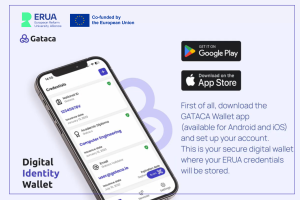
Download the GATACA Wallet app on your smartphone and use your university email address to log-in.
Step 2. Access the ERUA Issuer Service
Using your computer, open the ERUA Issuer Service and click “Access the service”.
Step 3. Log in to your home university
Select your home institution and log in using your usual university credentials.
Step 4. Issue your University-iD
Select “ERUA Alliance: University-iD”. A QR code will appear on your computer screen. Open the GATACA Wallet app on your phone, scan the QR code and accept the credential.
Step 5. Issue your Alliance-iD
Return to the previous step in the ERUA Issuer Service on your computer and repeat the process for “ERUA Alliance: Alliance-iD”. Scan the new QR code with your GATACA Wallet app and accept the credential.
Step 6. Check your Gataca Wallet App
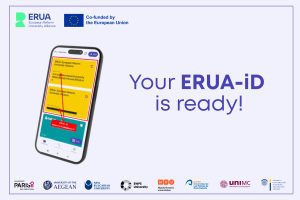
Make sure both iDs (University-iD and Alliance-iD) are stored in your GATACA Wallet app.
You only need to complete this process once, given you keep the GATACA Wallet app on your phone.
Need help?
If you encounter technical issues or need guidance, you can contact the ERUA-iD support team at erua-id@aegean.gr
For those who face difficulties issuing their ERUA-iD, an online support session will be held in November, before the Summit. The exact date will be announced soon.
Remember: ERUA-iD is required for all Summit participants form ERUA universities. Make sure your credentials are available in your GATACA Wallet app before arriving in Sofia.